Broadcast gameplay to Streams
Set up OBS, connect securely, and verify your broadcast on the event's private Streams service.
What you need
- OBS Studio with a working game or window capture source.
- Access to the event network and the Streams address provided by the organizers.
- A publishing username and password issued separately by the organizers. The Streams guide does not display these credentials.
Watching Streams does not require an account, but publishing requires authentication. Your Bracket account does not grant publishing access.
Set up OBS
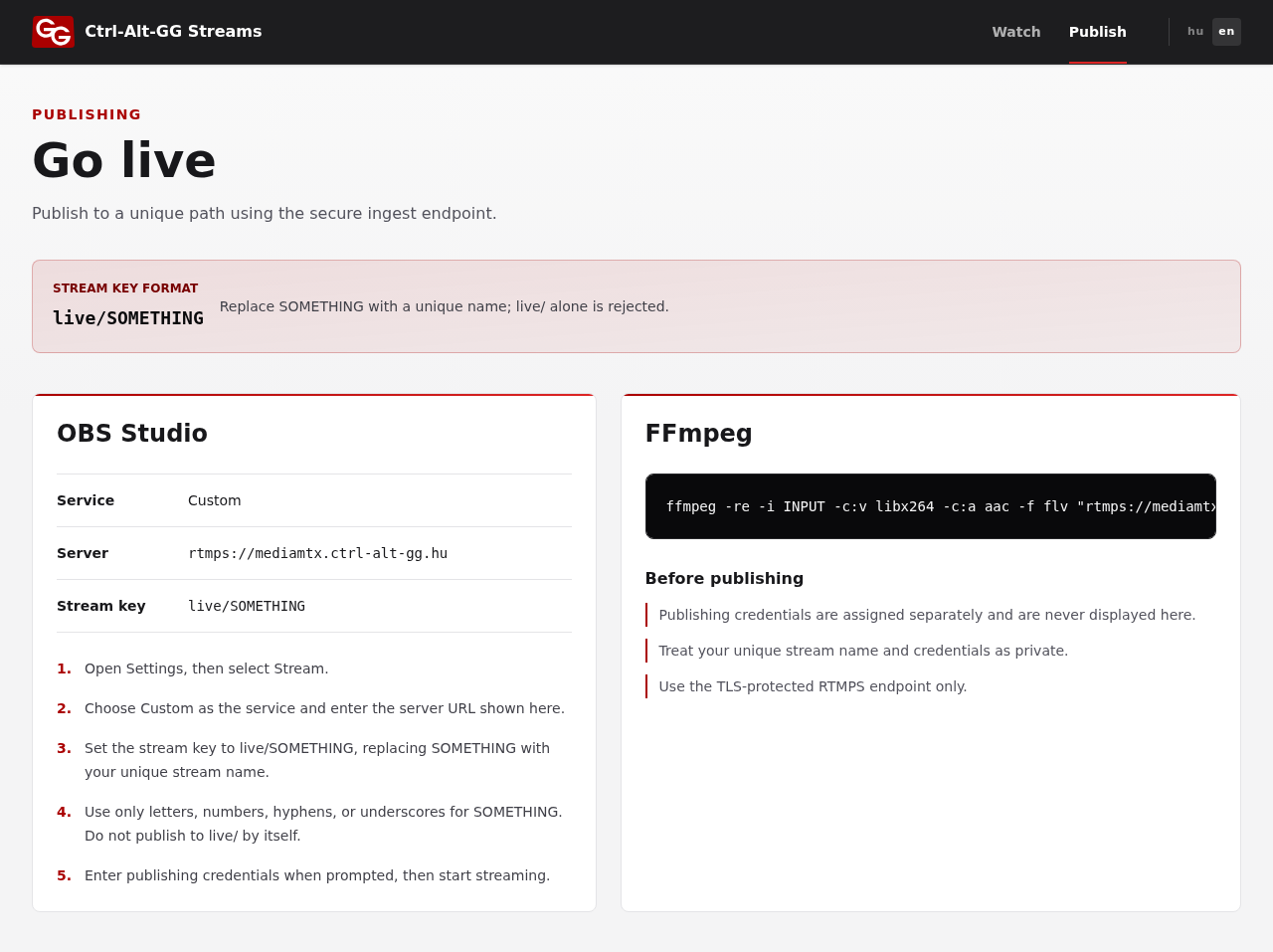
- In Streams, open Publish in the navigation, or Open guide at the bottom of the home page.
- In OBS, open Settings > Stream and choose Custom as the service.
- Copy the server address displayed in the Streams guide into Server. Use only the TLS-protected address beginning with
rtmps://. The catalog’s browser address is not the publishing server address. - Set Stream key to a unique name in the form
live/SOMETHING, for examplelive/team7. ReplaceSOMETHINGusing only letters, numbers, hyphens, or underscores. The server rejectslive/on its own. - Enable authentication and enter the publishing credentials issued by the organizers. Server and stream key are separate fields; do not put the
live/prefix in both. - Check the OBS preview and audio mixer levels, then click Start Streaming.
Do not broadcast passwords, private messages, or other people’s personal information. Capture the game rather than your whole screen where possible. Keep your publishing name and credentials private.
Check that others can watch
- Allow the catalog to refresh, then reload the Streams home page.
- Open your channel. Check video and audio using the playback guide.
- Mute local playback so OBS does not capture your own stream again.
- Share the channel’s browser page with viewers, not the RTMPS address or publishing credentials. Viewers also need network access.
- When finished, click Stop Streaming in OBS. Closing your browser does not stop the broadcast.
The connection fails
- Authentication error: check the publishing username and password. Do not use your Bracket login details.
- Rejected stream key: check the
live/prefix, the name after it, and the allowed characters. If the name is already in use, check with the organizers. - Connection error: copy the current server address from the Streams guide again and check your network access. Do not bypass certificate errors by disabling TLS.
- OBS is sending, but there is no channel: allow the catalog another refresh. If a source warning persists on the site, contact the organizers.
- Choppy video: check OBS statistics. If the computer or network is overloaded, lower the resolution, frame rate, or bitrate and try a wired connection.
Using FFmpeg instead
The FFmpeg section of the Streams publishing guide provides a command template with the current server address. Replace INPUT with your input and SOMETHING with your publishing name. The template sends H.264 video and AAC audio in an FLV container.
The template contains no credentials, so it does not grant access on its own. Confirm the authentication method with the organizers, and keep passwords out of shared commands, screenshots, and support requests.