Watch a stream or listen to radio
Open a live channel in Streams, turn on audio, and check common playback problems.
Open a live channel
- Connect to the event network, or use the network access provided by the organizers. Streams is intended for a private network, not as a public video-sharing site.
- Open the Streams address provided by the organizers. Browsing and playback do not require an account.
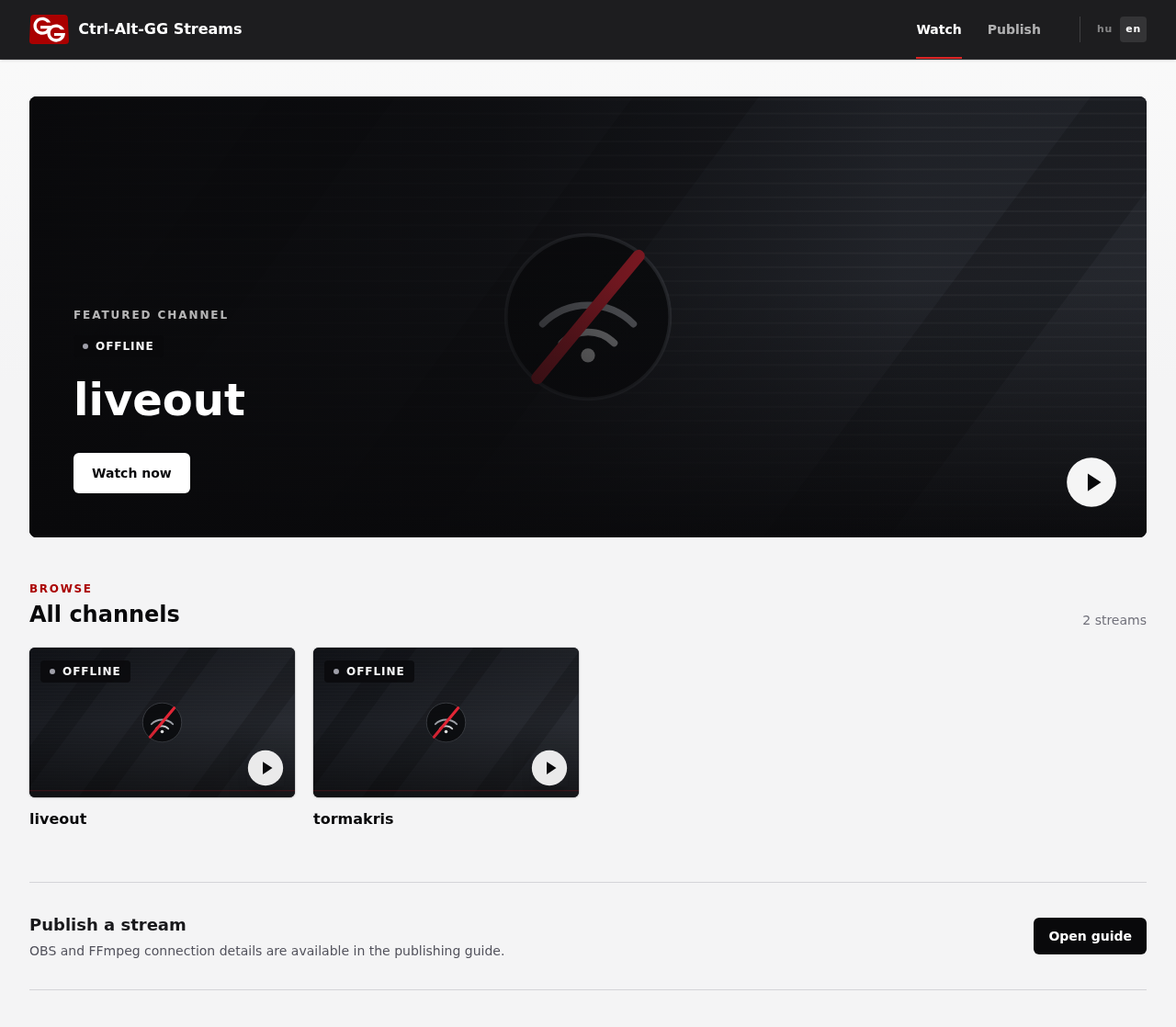
- Choose a live channel from All channels, or open the featured stream with Watch now.
- For video, unmute the player: playback starts muted. For radio, click Listen live.
Use headphones so you do not disturb nearby players. The video player’s controls also let you switch to full screen.
The stream will not play
- The site itself is unreachable: check that you are on the correct network. The private service may not be reachable over mobile data.
- The channel is offline: the broadcaster is not currently sending a stream. Wait for them to go live, then reload the page.
- The status cannot be confirmed, or a warning says the data is stale: the catalog has not received fresh data from the streaming server. This alone does not prove the broadcaster stopped. Try again later and contact the organizers if it persists.
- There is video but no sound: unmute the player, then check the browser tab’s audio and your system’s output device.
- The browser cannot play the stream: try an up-to-date browser. If another live channel works, tell the organizers which stream is affected.
When reporting a problem, include the channel page’s address, the time, and the visible error message. Do not send passwords or publishing credentials.
To start your own broadcast, follow the publishing guide.